Human Resource Management is the backbone of every organization. From hiring the right talent to managing payroll, attendance, and performance—HR plays a critical role in business success.
But many companies still manage HR using:
Spreadsheets
Emails and manual approvals
Disconnected payroll and attendance systems
The result?
Errors in payroll
Delays in approvals
Compliance risks
Lack of visibility into workforce performance
To scale efficiently, businesses need a centralized and automated HR system.
This is where Odoo HRMS transforms HR operations.
Why Traditional HR Management Fails
HR teams today handle:
Employee data
Payroll processing
Attendance tracking
Leave management
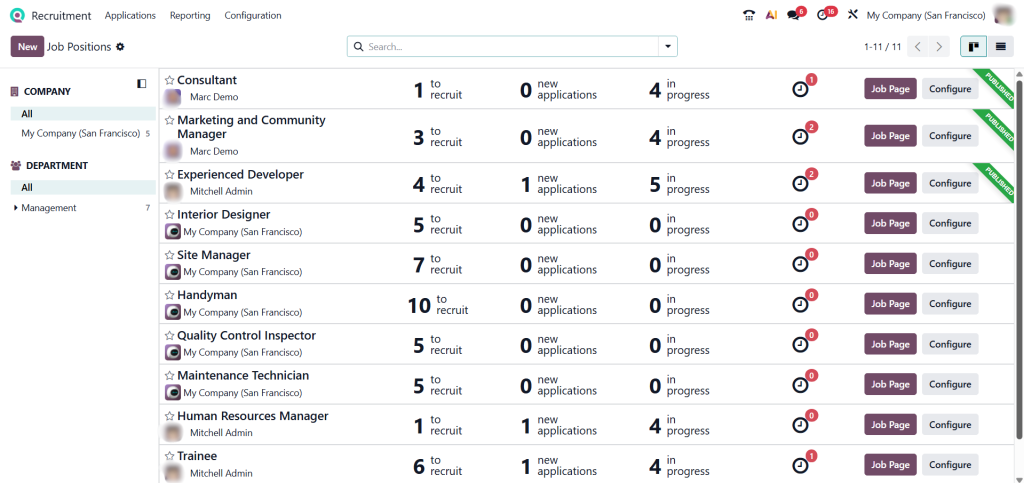
Recruitment and appraisals
When these processes are manual or disconnected:
Data becomes inconsistent
Errors increase
Productivity drops
Manual HR systems often lead to mistakes, delays, and compliance issues, especially in payroll and employee records.
What is Odoo HRMS?
Odoo HRMS is a fully integrated Human Resource Management System that connects all HR functions into one platform.
It includes:
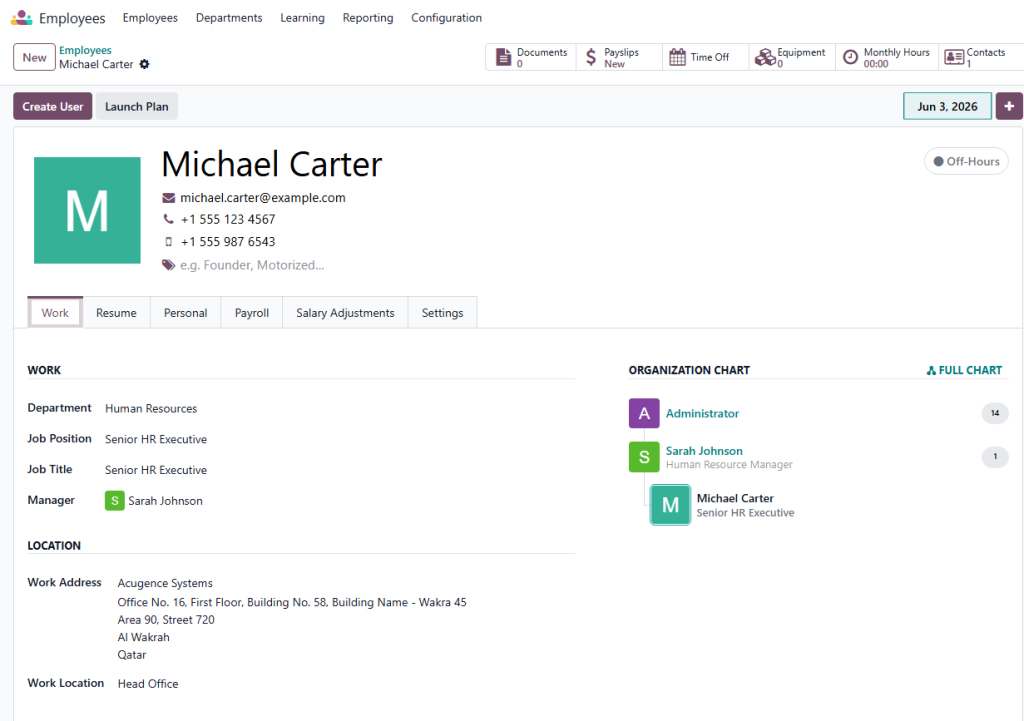
Employee management
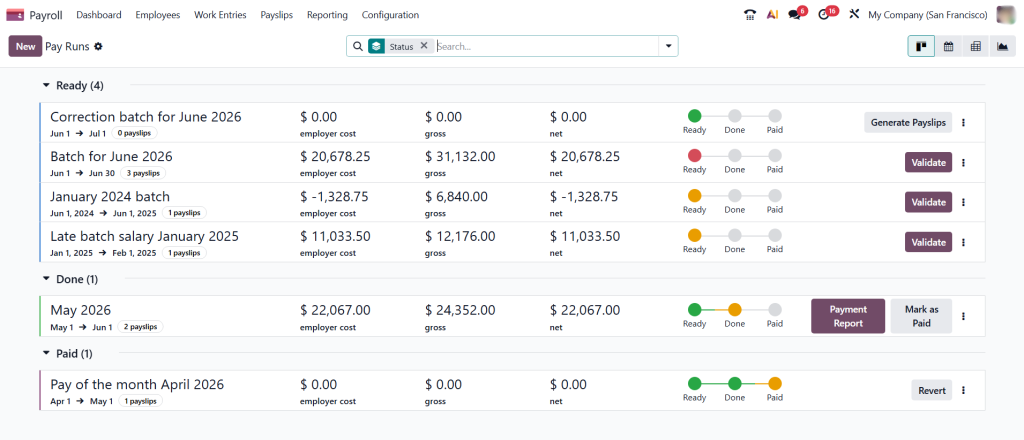
Payroll
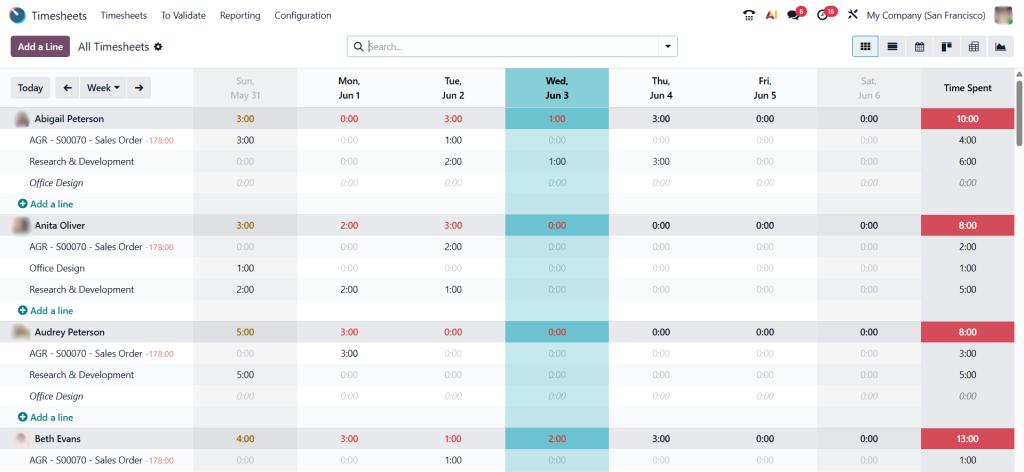
Attendance & timesheets
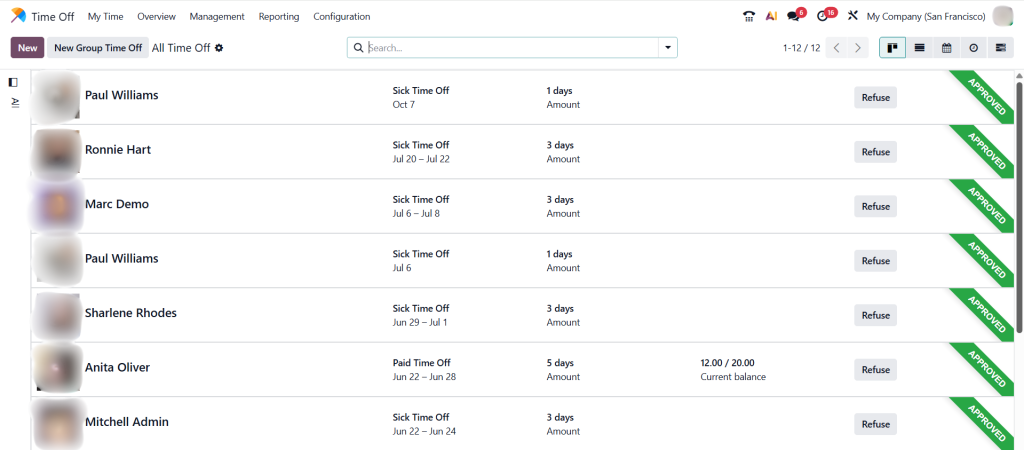
Leave management
Recruitment
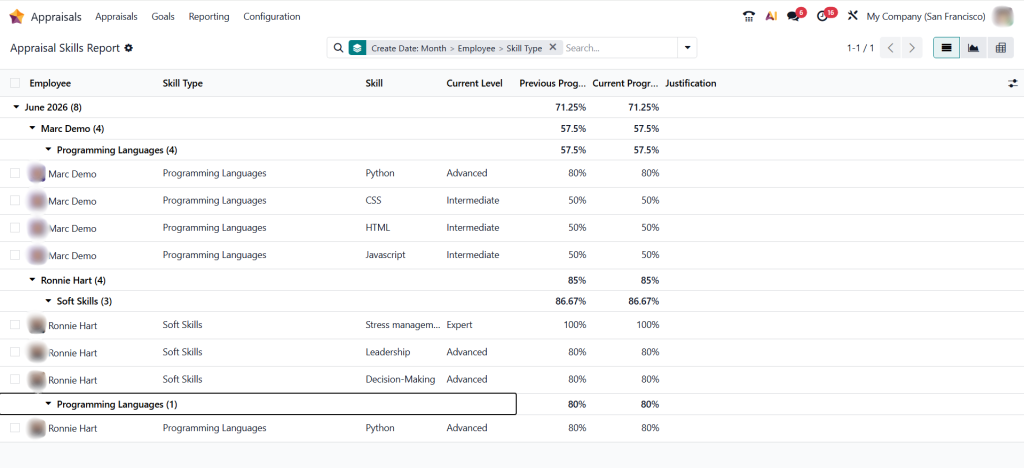
Performance appraisal
Instead of managing HR across multiple tools, Odoo provides a single, centralized system for your entire workforce. HRMS solutions like Odoo improve efficiency by automating HR processes and providing real-time insights for decision-making.
Key Features of Odoo HRMS
1. Centralized Employee Management
Odoo stores all employee information in one place:
Personal details
Contracts
Job roles and departments
Eliminates scattered records and improves data accuracy
2. Payroll Automation
Odoo simplifies payroll by:
Automating salary calculations
Managing deductions and benefits
Generating payslips
Reduces errors and ensures compliance
3. Time & Attendance Tracking
Track employee activity in real-time:
Attendance logs
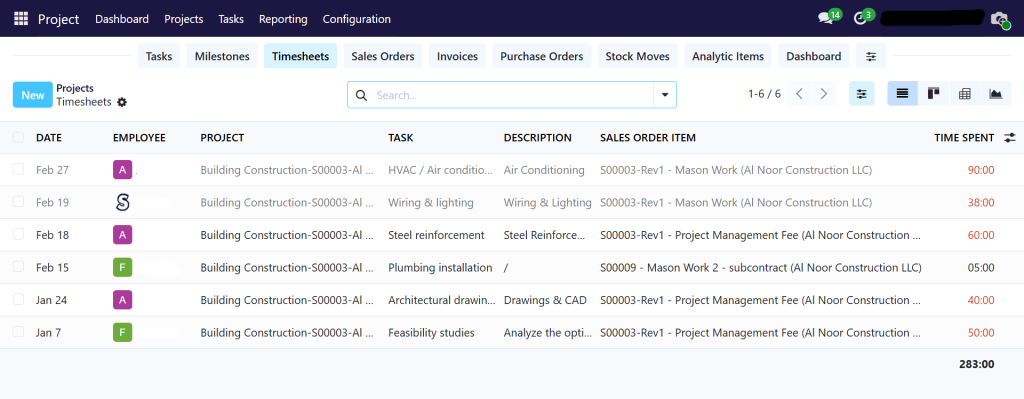
Timesheets by project
Work hours analysis
Improves productivity and accountability
4. Leave & Approval Management
Employees can:
Request leave online
Track approvals
View leave balances
Managers can approve instantly, reducing delays.
5. Recruitment & Onboarding
Odoo helps you:
Post job openings
Track applicants
Manage interviews
Convert candidates into employees
Streamlines the entire hiring process
6. Performance & Appraisals
Evaluate employees using:
KPIs
Feedback systems
Performance reviews
Improves employee engagement and growth
Solving Your Key HR Challenges
1. Still managing HR in spreadsheets?
Odoo replaces manual spreadsheets with:
Centralized HR database
Automated workflows
Employee self-service portals
No more scattered or outdated data
2. Payroll, leave, and attendance are disconnected
Odoo integrates all HR functions:
Payroll linked with attendance
Leave automatically reflected in payroll
Timesheets connected to projects
One system. Fully connected HR operations
3. Errors, delays, and compliance risks increase
Odoo reduces risks by:
Automating payroll calculations
Tracking attendance accurately
Maintaining audit-ready records
Ensures compliance with labor laws and internal policies
4. Odoo HRMS unifies all HR processes in one system
Odoo connects:
Recruitment → Employee → Payroll → Appraisal
Complete employee lifecycle managed in one platform
Logistics operations are the backbone of any product-based business. From warehouse management to shipment tracking, every movement impacts cost, efficiency, and customer satisfaction.
Yet many companies still manage logistics through:
Spreadsheets
WhatsApp communication
Disconnected tools
The result?
No real-time visibility
Delayed shipments
Manual coordination errors
To compete in today’s fast-moving market, businesses need a centralized, automated logistics system. This is where Odoo Logistics ERP (WMS) transforms operations.
Why Logistics Operations Break Down Without ERP
Modern logistics involves:
Multiple warehouses
High-volume shipments
Complex routing and fulfillment
When systems are disconnected:
Inventory data becomes inaccurate
Teams work in silos
Decisions are delayed
In fact, fragmented systems are one of the biggest causes of inefficiencies in logistics operations.
What is Odoo Logistics ERP (WMS)?
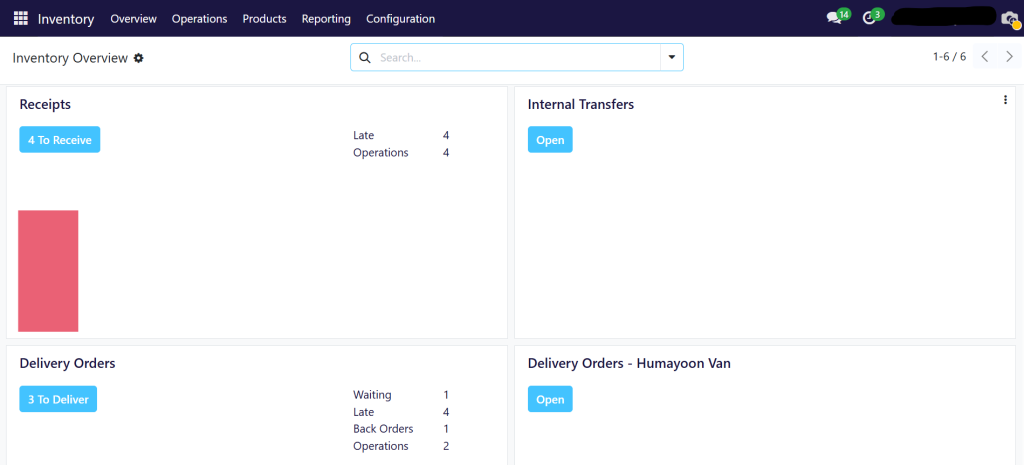
Odoo WMS is a fully integrated warehouse and logistics management system that connects:
Inventory
Warehouse operations
Transportation & delivery
Sales & invoicing
All within a single platform and database.
Unlike traditional systems, Odoo eliminates the need for multiple tools by providing a unified logistics ecosystem.
Key Features of Odoo for Logistics & Warehousing
1. Centralized Warehouse Management
Odoo manages:
Receiving & putaway
Picking, packing, and shipping
Internal transfers
With optimized workflows, businesses can reduce errors and improve efficiency.
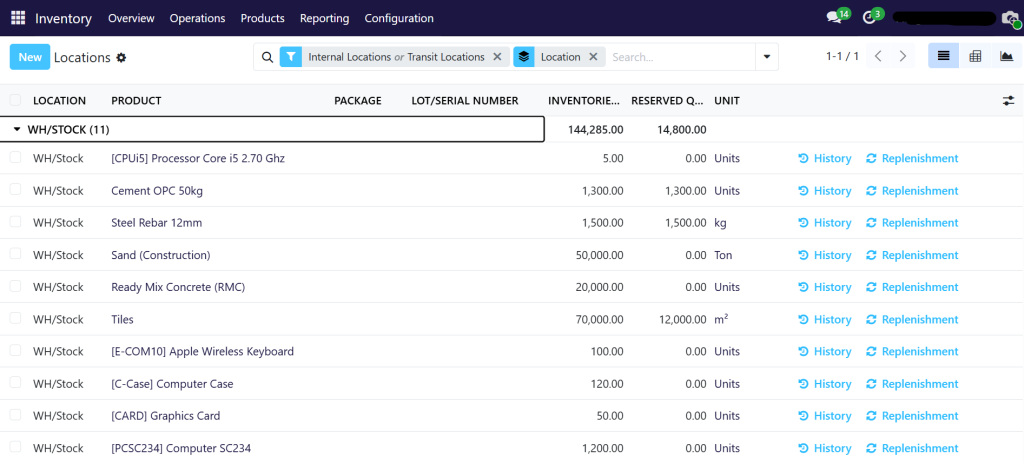
2. Real-Time Inventory & Shipment Tracking
Odoo provides:
Live stock updates
Shipment status tracking
Multi-warehouse visibility
This ensures accurate and real-time operational control across all locations.
3. Automated Logistics Workflows
Automation includes:
Replenishment rules
Order fulfillment
Route optimization
Barcode scanning
This reduces manual work and improves speed and accuracy.
4. Smart Routing (Push & Pull Rules)
Odoo uses:
Push rules → move products automatically after receiving
Pull rules → trigger delivery based on demand
This ensures smooth product movement across the supply chain.
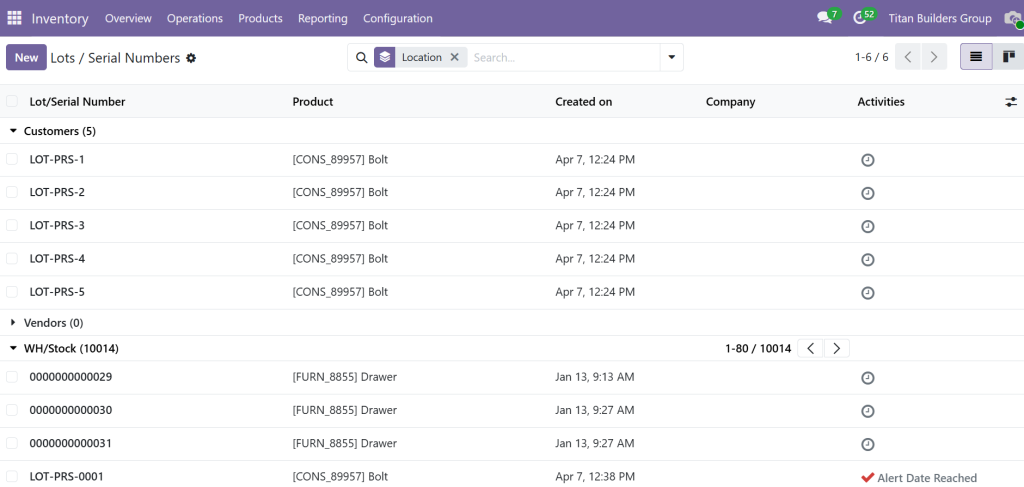
5. Full Traceability with Lots & Serial Numbers
Track every product:
From supplier to customer
Across warehouses and locations
This improves accountability and reduces losses.
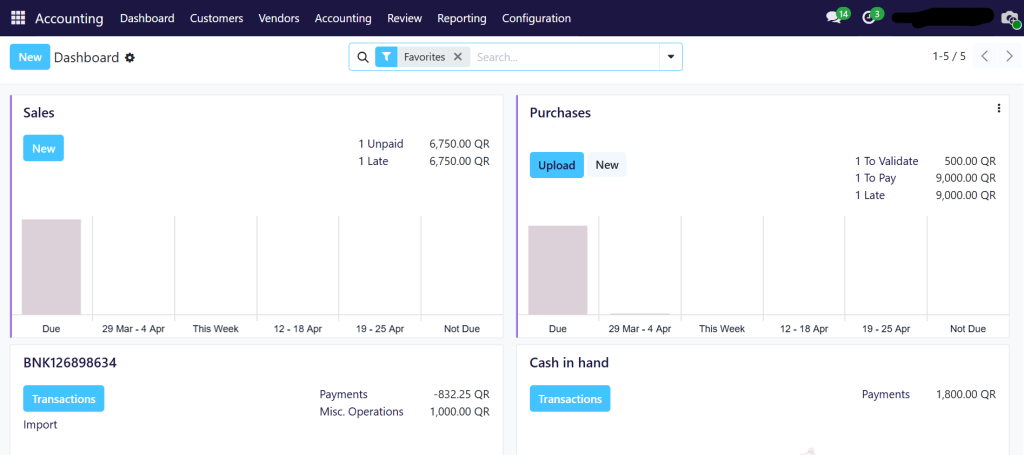
6. Integrated Invoicing & Accounting
Odoo connects logistics with finance:
Automatic invoice generation
Cost tracking per shipment
Real-time financial reporting
No more manual reconciliation.
Solving Your Key Logistics Challenges
1. Still managing shipments in spreadsheets and WhatsApp?
Odoo replaces manual tools with:
Centralized dashboards
Automated workflows
Real-time communication between teams
No more scattered information across platforms
2. Multiple shipments. Multiple files. No real-time visibility.
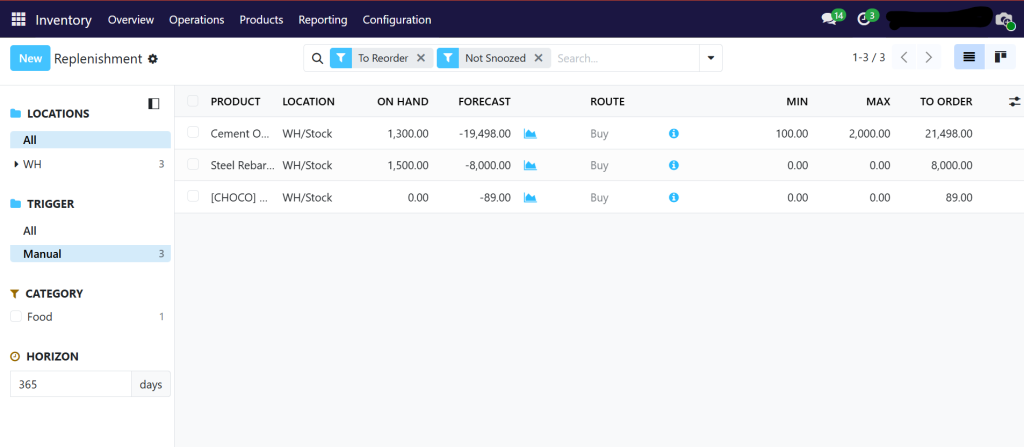
The construction industry in Qatar and across the GCC operates in a highly dynamic environment—multiple sites, fluctuating material costs, and tight project deadlines.
Yet many construction companies still rely on spreadsheets and disconnected systems.
The result?
No clear visibility of project costs
Delayed reporting
Budget overruns
Poor coordination across teams
To stay competitive, construction companies need a centralized, real-time system. This is where Odoo Construction ERP transforms operations.
Why Construction Companies Struggle Without ERP
Construction projects involve:
Large capital investments
Multiple vendors and subcontractors
Complex workflows across sites
Without an integrated system:
Financial data is scattered
Site updates are delayed
Decisions are based on outdated information
This leads to inefficiencies, revenue leakage, and project delays.
What is Odoo Construction ERP?
Odoo is a fully integrated ERP platform that connects:
Project Management
Accounting & Job Costing
Procurement & Inventory
HR & Workforce Management
CRM & Client Communication
Instead of managing operations in silos, Odoo provides a single source of truth for your entire construction business.
Key Features of Odoo ERP for Construction Companies
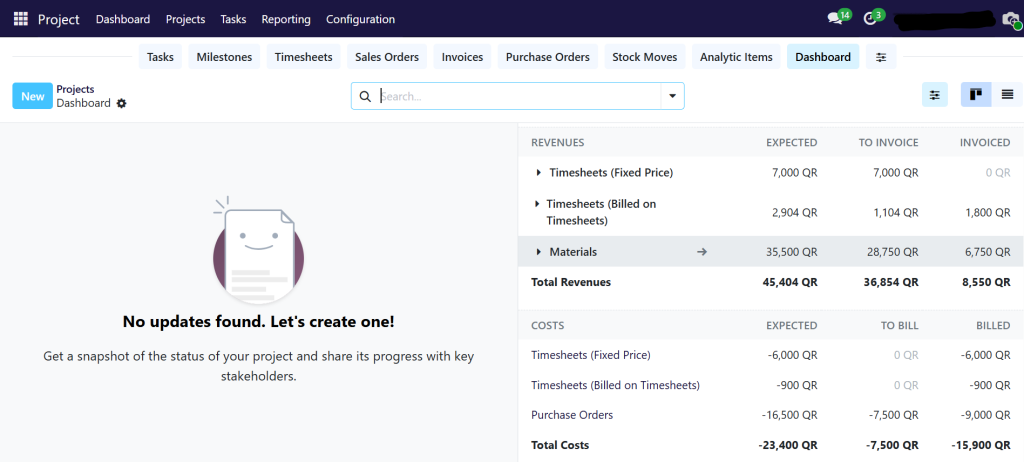
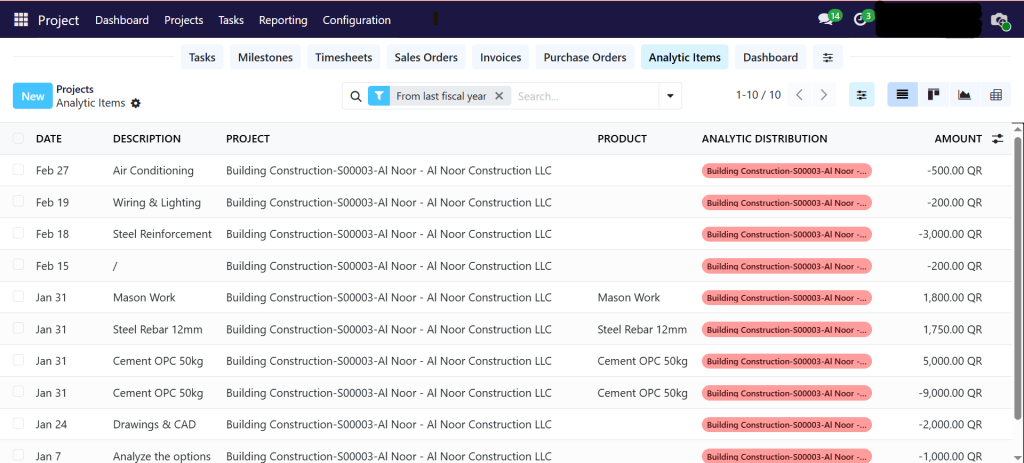
1. Real-Time Project Cost Tracking
Odoo enables you to:
Track budgets vs actual costs
Monitor expenses at task and project level
Identify cost leaks instantly
This ensures better financial control and profitability
2. Multi-Site Visibility
Manage all your construction sites from one system:
Site-wise cost tracking
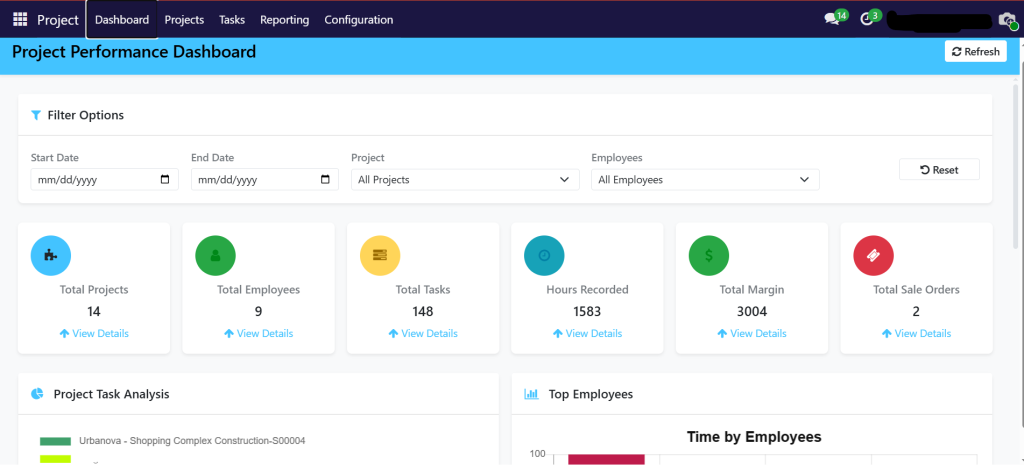
Centralized dashboards
Real-time updates from field teams
No more waiting for manual reports
3. Smart Procurement & Inventory Management
Odoo helps you:
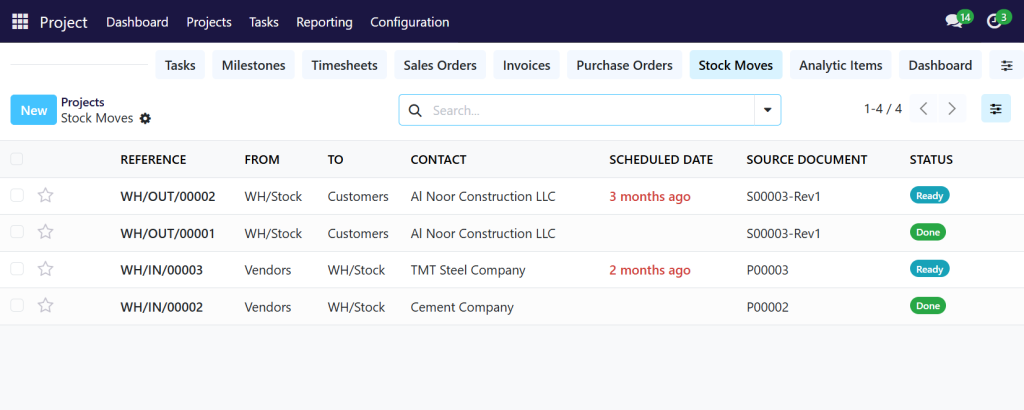
Track material usage across sites
Automate purchase orders
Avoid stock shortages and over-purchasing
Reduce delays and material wastage
4. Workforce & Resource Management
Efficiently manage:
Labor allocation
Work schedules
Productivity tracking
Optimize workforce utilization and reduce idle time
5. Live Dashboards & Reporting
Get instant insights into:
Project progress
Financial performance
Resource usage
Make faster, data-driven decisions
Solving the Biggest Construction Challenges
1. Where is your project money really going?
Odoo provides detailed job costing, breaking down expenses into:
Materials
Labor
Equipment
Subcontractors
You get complete transparency on every expense
2. Costs across sites are not visible in real-time
Odoo centralizes all site data into one platform:
Real-time cost updates
Consolidated financial reports
Live dashboards
Track all projects without delays
3. Overruns happen slowly — until it’s too late
Odoo prevents this by:
Monitoring budgets continuously
Sending alerts when limits are exceeded
Highlighting deviations early
Shift from reactive to proactive cost control
4. Odoo tracks budgets, expenses, and progress live
Everything is connected in Odoo:
Budget planning
Expense tracking
Task progress
Finance and operations work together seamlessly
5. Control every riyal across every site
With Odoo, you can:
Approve expenses through workflows
Track financials in real-time
Monitor profitability per project
Achieve complete financial control
Benefits of Implementing Odoo Construction ERP
Construction companies using Odoo can:
Improve cost accuracy and reduce overruns
Increase project visibility and control
Automate manual processes
Enhance collaboration across departments
Deliver projects on time and within budget
Why Choose Odoo for Construction in Qatar?
Odoo is ideal for construction companies in Qatar because:
It supports multi-project and multi-site operations
It is fully customizable based on your workflow
It scales as your business grows
It ensures compliance with local business requirements
Conclusion
Construction success depends on visibility, control, and efficiency. Without the right system, managing costs and projects becomes unpredictable.
Odoo Construction ERP provides:
Real-time insights
Centralized control
Scalable operations
Helping you move from operational chaos to structured growth.
Ready to Take Control of Your Construction Projects?
In Odoo 15, confirming a sales order automatically creates a delivery order. While this default behavior works for many businesses, it can be limiting for organizations that require tighter operational control. Warehouses with complex workflows, approval processes, or external logistics dependencies often prefer to decide exactly when delivery notes are generated.
This article explains how to build a custom Odoo 15 module that disables automatic delivery creation and introduces a manual “Create Delivery” button on the sales order form. You will learn how to extend core models, adjust confirmation logic, customize views, and use context flags to manage stock picking generation.
Why Use Manual Delivery Notes in Odoo?
Consider a high-volume warehouse that processes hundreds of confirmed sales orders each day. Automatically generating delivery orders for every confirmation can overwhelm warehouse staff and complicate picking operations. A manual approach allows teams to review confirmed orders first and create delivery notes in controlled batches.
Another common scenario involves businesses that sell both stocked items and products that are manufactured or purchased on demand. These companies may need to confirm sales orders immediately for financial or reporting reasons, while postponing delivery creation until inventory is physically available.
Manual delivery note control allows Odoo to adapt to these workflows by separating sales confirmation from inventory execution.
Technical Approach Overview
The solution is based on three core components:
Model Extensions: New computed fields are added to the sale.order model, and confirmation behavior is modified to prevent automatic stock rule execution.
View Customization: A custom action button is added to the sales order form to allow manual delivery creation when conditions are met.
Context Flags: Odoo’s context mechanism is used to control when procurement and stock rules should be triggered.
This approach integrates cleanly with standard Odoo functionality, adding flexibility without breaking existing processes.
Step-by-Step Implementation
Step 1: Create the Module Structure
Start by creating a new custom module in your Odoo addons directory. The module should follow a standard structure:
Extend the sale.order model to determine when manual delivery creation is allowed. This logic ensures that delivery notes can only be created for confirmed orders without active pickings.
Override the sales order confirmation method to stop Odoo from creating delivery orders automatically. A context flag is passed to signal that stock rules should be skipped.
Extend sale.order.line to ensure stock rules are executed only when manual delivery creation is explicitly triggered. Buy routes remain unaffected so that purchase orders continue to generate automatically.
Step 6: Add the Sales Order Button
The final step is to update the sales order form view and add a “Create Delivery” button that appears only when manual delivery creation is allowed.
Testing the Customization
After installing the module, confirm a sales order and verify that no delivery is created automatically. The manual delivery button should appear once the order is confirmed. Clicking the button should generate a single delivery order and hide the button afterward.
Test edge cases such as service-only orders, duplicate delivery attempts, and Buy-route products to ensure expected behavior.
Conclusion
Manual delivery note control in Odoo 15 provides businesses with precise control over inventory operations. By separating sales confirmation from delivery creation, organizations can adapt Odoo to complex warehouse workflows while maintaining compatibility with standard functionality.
In Odoo’s flexible interface, the Kanban view serves as a powerful visual tool for managing records through different workflow stages. However, standard Odoo implementations often present all stages to all users, which can create confusion when different user roles need to see only relevant workflow stages. This comprehensive guide walks you through implementing conditional Kanban stage visibility in Odoo 15, allowing you to tailor the user experience based on specific criteria like user roles, record states, or custom business rules.
Why Control Kanban Stage Visibility?
Before diving into implementation, let’s understand why this capability matters:
Reduced Cognitive Load: Users only see stages relevant to their current responsibilities
Streamlined Workflows: Prevents users from attempting actions they shouldn’t perform
Enhanced Security: Hides stages that might expose sensitive workflow information
Improved User Experience: Creates a cleaner, more focused interface for each user type
Unlike simply hiding fields or buttons, stage visibility control operates at the data level—ensuring users never even see stages they shouldn’t interact with, rather than just disabling them after they appear.
Behind the Scenes: How Kanban Stage Visibility Works
Understanding Odoo’s underlying architecture is crucial for implementing this feature correctly. Here’s what happens behind the scenes when controlling Kanban stage visibility:
The Core Approach: Intercepting Data Retrieval
Odoo’s Kanban view displays stages by retrieving data through two critical methods:
read_group() – Used to fetch the grouped data for Kanban columns
search() – Used to fetch records within each stage
This happens by overriding these methods to filter out unwanted stages before the data reaches the user interface. This approach ensures:
Stages are hidden at the data layer, not just visually
No unnecessary database queries for hidden stages
Complete separation of concerns (business logic stays in Python)
Compatibility with Odoo’s standard caching mechanisms
Visual Representation of the Data Flow
The approach is
User Request │ ▼Odoo Controller │ ▼[read_group()&search() methods] ← Your custom logic lives here │ (Data filtering happens here) ▼Filtered Data │ ▼Kanban View Renderer │ ▼Browser(Only shows permitted stages)
This approach provides significant advantages over client-side filtering:
Security: Hidden stages never reach the browser
Performance: Reduced data payload improves loading times
Consistency: Works across all entry points (not just the main view)
Implementation Guide
Let’s walk through implementing conditional stage visibility in your Odoo 15 module. We’ll focus on a common use case: hiding specific stages based on user roles.
Step 1: Identifying the Target Model
First, identify which model’s Kanban view you want to modify. In our example, we’ll work with a custom model called project.task (though the same principles apply to any model with stages). Create a new file in your module: models/project_task.py
Step 2: Overriding read_group() Method
The read_group() method is responsible for retrieving the stage groups that become your Kanban columns. This is where we’ll filter out unwanted stages:
from odoo import api, models, _classProjectTask(models.Model): _inherit ='project.task'@api.modeldefread_group(self,domain,fields,groupby,offset=0,limit=None,orderby=False,lazy=True):# First, call the parent method to get the standard results result =super(ProjectTask,self).read_group( domain, fields, groupby,offset=offset,limit=limit,orderby=orderby,lazy=lazy)# Only apply our filtering when grouping by stage_idif'stage_id'in groupby:# Get the stage we want to potentially hide restricted_stage =self.env.ref('your_module_name.restricted_stage_key',raise_if_not_found=False)# Determine if current user should see this stage# In this example, we're checking if user is in a specific group user_can_see_restricted =self.env.user.has_group('your_module_name.group_admin')# If we found the stage and user shouldn't see it, filter it outif restricted_stage andnot user_can_see_restricted:# Filter out the restricted stage from results result =[r for r in result ifnot r.get('stage_id')or r['stage_id'][0]!= restricted_stage.id]return result
Step 3: Overriding search() Method
The read_group() method handles the column headers, but the search() method retrieves the actual records within each stage. We need to override this too to prevent records from appearing in hidden stages:
@api.modeldefsearch(self,domain,offset=0,limit=None,order=None,count=False):# Get the stage we want to potentially hide restricted_stage =self.env.ref('your_module_name.restricted_stage_key',raise_if_not_found=False)# Determine if current user should see this stage user_can_see_restricted =self.env.user.has_group('your_module_name.group_admin')# If stage exists and user shouldn't see it, modify the domainif restricted_stage andnot user_can_see_restricted:# Add condition to exclude the restricted stage new_domain = domain +[('stage_id','!=', restricted_stage.id)]returnsuper(ProjectTask,self).search( new_domain,offset=offset,limit=limit,order=order,count=count)# Otherwise, proceed with standard searchreturnsuper(ProjectTask,self).search( domain,offset=offset,limit=limit,order=order,count=count)
Key Design Decisions Explained:
Two-Point Filtering: By overriding both read_group() and search(), we ensure:
The stage column never appears (read_group)
Records never appear in that column (search)
Reference-Based Stage Identification: Using env.ref() with XML IDs makes the code:
More maintainable (no hardcoded IDs)
Safer (fails gracefully if stage doesn’t exist)
Clearer (shows the stage’s purpose via its key)
Conditional Application: The filtering only applies when:
The stage exists in the database
The specific condition (user group check) is met
Step 4: Creating Custom Action with Pre-Filtered Domain
Sometimes you need a dedicated action that always shows filtered stages. Here’s how to create one:
@api.modeldefaction_filtered_tasks(self):"""Action to open tasks with restricted stage filtered out"""# Determine if current user should see restricted stage user_can_see_restricted =self.env.user.has_group('your_module_name.group_admin')# Get the restricted stage restricted_stage =self.env.ref('your_module_name.restricted_stage_key',raise_if_not_found=False)# Build domain domain =[]if restricted_stage andnot user_can_see_restricted: domain =[('stage_id','!=', restricted_stage.id)]# Build context context ={'group_by':'stage_id','default_view_mode':'kanban','user_can_see_restricted': user_can_see_restricted,}return{'name':_('My Tasks'),'type':'ir.actions.act_window','res_model':'project.task','view_mode':'kanban,tree,form','views':[(self.env.ref('your_module_name.view_task_kanban').id,'kanban'),(False,'tree'),(False,'form')],'domain': domain,'context': context,'help':'''<p class="o_view_nocontent_smiling_face">No tasks found!</p> <p>Only tasks in visible stages are displayed here.</p>''',}
Advanced Implementation Scenarios
Scenario 1: Hiding Stages Based on Record Properties
Sometimes you need to hide stages based on properties of the records themselves, not just user roles:
@api.modeldefread_group(self,domain,fields,groupby,offset=0,limit=None,orderby=False,lazy=True): result =super().read_group(domain, fields, groupby, offset, limit, orderby, lazy)if'stage_id'in groupby:# Get current user's department user_department =self.env.user.department_id# Find stages associated with departments department_stages =self.env['project.task.stage'].search([('department_ids','!=',False)])# Filter out stages not relevant to user's departmentif department_stages and user_department: result =[ r for r in result ifnot r.get('stage_id')ornotself.env['project.task.stage'].browse(r['stage_id'][0]).department_ids or user_department inself.env['project.task.stage'].browse(r['stage_id'][0]).department_ids]return result
Scenario 2: Context-Based Stage Visibility
You might want different visibility rules depending on how the view is accessed:
@api.modeldefread_group(self,domain,fields,groupby,offset=0,limit=None,orderby=False,lazy=True): result =super().read_group(domain, fields, groupby, offset, limit, orderby, lazy)if'stage_id'in groupby:# Check if we're in a specific contextifself.env.context.get('hide_restricted_stages',True): restricted_stage =self.env.ref('your_module_name.restricted_stage',False)if restricted_stage: result =[r for r in result ifnot r.get('stage_id')or r['stage_id'][0]!= restricted_stage.id]return result
This allows you to control visibility through URL parameters or action contexts.
Best Practices and Considerations
Performance Optimization
Cache Reference Lookups: If you’re using the same stage references repeatedly, cache them at the class level
Minimize Database Queries: Avoid making database calls inside loops
Use Efficient Filtering: Prefer list comprehensions over multiple filter calls
# Good practice: Cache the stage referenceRESTRICTED_STAGE_ID =None@api.modeldef_get_restricted_stage_id(self):global RESTRICTED_STAGE_IDif RESTRICTED_STAGE_ID isNone: stage =self.env.ref('your_module_name.restricted_stage',raise_if_not_found=False) RESTRICTED_STAGE_ID = stage.id if stage elseNonereturn RESTRICTED_STAGE_ID@api.modeldefread_group(self,domain,fields,groupby,offset=0,limit=None,orderby=False,lazy=True): result =super().read_group(domain, fields, groupby, offset, limit, orderby, lazy)if'stage_id'in groupby: restricted_stage_id =self._get_restricted_stage_id()if restricted_stage_id andnotself.user_can_access_restricted(): result =[r for r in result ifnot r.get('stage_id')or r['stage_id'][0]!= restricted_stage_id]return result
Error Handling and Graceful Degradation
Always design your code to work even if stages are missing:
@api.modeldefread_group(self,domain,fields,groupby,offset=0,limit=None,orderby=False,lazy=True): result =super().read_group(domain, fields, groupby, offset, limit, orderby, lazy)if'stage_id'in groupby:try:# Attempt to get the stage restricted_stage =self.env.ref('your_module_name.restricted_stage')# Only filter if user shouldn't see itifnotself.user_can_see_restricted(): result =[r for r in result ifnot r.get('stage_id')or r['stage_id'][0]!= restricted_stage.id]exceptValueError:# Stage doesn't exist - proceed without filteringpassreturn result
Conclusion
Implementing conditional Kanban stage visibility in Odoo 15 is a powerful way to tailor the user experience to specific roles and scenarios. By understanding and properly overriding the read_group() and search() methods, you can create a more focused, efficient interface that guides users through appropriate workflows while hiding irrelevant options.
The key to success lies in:
Understanding Odoo’s underlying data flow
Implementing filtering at the appropriate data layer
Handling edge cases and missing references gracefully
Optimizing for performance in your filtering logic
When done correctly, this technique significantly enhances user experience without compromising data integrity or security. Your users will appreciate the cleaner interface, and your business processes will benefit from reduced errors and more focused workflows.
Remember that the most effective implementations are those that blend seamlessly into the Odoo experience—users shouldn’t even notice the filtering is happening, they’ll just find their interface more intuitive and relevant to their daily tasks.
In complex sales scenarios, businesses often need to present multiple quotation options to their clients within a single sales order. This comprehensive guide walks you through building a custom multi-quotation module for Odoo 15 that Behind the Scenes: How Multi-Quotations Work allows sales teams to create, manage, and finalize multiple quotation alternatives seamlessly.
Overview of the Multi-Quotation System
The multi-quotation system extends Odoo’s standard sales workflow by introducing the concept of “quotation lines” – separate quotations that exist within a single sales order. Users can create multiple quotation variations, compare them, and ultimately finalize one option while keeping the others for reference.
Behind the Scenes: How Multi-Quotations Work
Understanding the underlying data structure is crucial for implementing this system effectively. Here’s what actually happens behind the scenes:
The Core Approach: Unified Storage with Organized Display
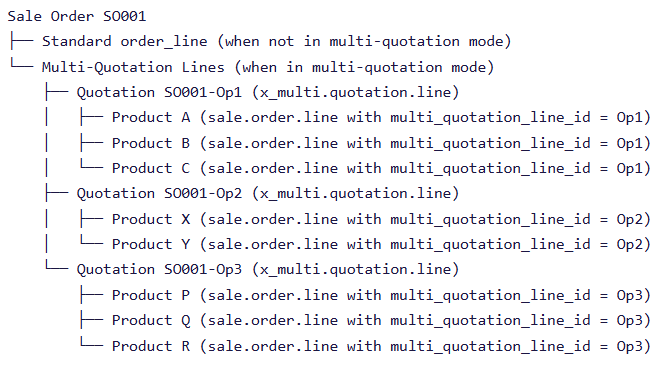
All quotation lines are stored as regular Odoo sale.order.line records – there’s no separate storage mechanism. The magic lies in how we organize and display them:
Single Storage Layer: Every product line from every quotation variation gets stored in the standard sale.order.line table
Linking Mechanism: Each sale order line has a multi_quotation_line_id field that links it to its parent quotation
Visibility Control: The active field determines which lines are currently visible and counted in totals
Organized Presentation: The UI groups these lines by their parent quotation for organized display
Visual Representation of Data Structure
Sale Order SO001
├── Standard order_line (when not in multi-quotation mode)
└── Multi-Quotation Lines (when in multi-quotation mode)
    ├── Quotation SO001-Op1 (x_multi.quotation.line)
    │   ├── Product A (sale.order.line with multi_quotation_line_id = Op1)
    │   ├── Product B (sale.order.line with multi_quotation_line_id = Op1)
    │   └── Product C (sale.order.line with multi_quotation_line_id = Op1)
    ├── Quotation SO001-Op2 (x_multi.quotation.line)
    │   ├── Product X (sale.order.line with multi_quotation_line_id = Op2)
    │   └── Product Y (sale.order.line with multi_quotation_line_id = Op2)
    └── Quotation SO001-Op3 (x_multi.quotation.line)
        ├── Product P (sale.order.line with multi_quotation_line_id = Op3)
        ├── Product Q (sale.order.line with multi_quotation_line_id = Op3)
        └── Product R (sale.order.line with multi_quotation_line_id = Op3)
State Management Through Finalization
When a quotation is finalized:
Lines from the selected quotation: active = True (visible and counted)
Lines from other quotations: active = False (hidden but preserved)
The sale order appears as a normal quotation with only the selected products
This approach provides several advantages:
Data Preservation: No quotation data is ever lost
Standard Compatibility: Finalized quotations work with all existing Odoo features
Audit Trail: Complete history of all quotation options remains accessible
Performance: No complex joins or custom reporting needed
Key Features
Toggle Mode: Enable/disable multi-quotation functionality per sales order
Multiple Quotations: Create unlimited quotation variations within one sales order
Product Management: Full product selection with pricing, taxes, and margins
Finalization Process: Convert multi-quotation back to standard sales order
Clean Interface: Dynamic UI that adapts based on the current mode
System Architecture
The module consists of four main components:
Multi-Quotation Line Model (x_multi.quotation.line)
Quotation Wizard (x_add.quotation.line.wizard)
Finalization Wizard (x_finalize.quotation.wizard)
Extended Sale Order with new fields and behavior
Implementation Guide
Step 1: Creating the Multi-Quotation Line Model
The foundation of our system is the multi-quotation line model that represents individual quotation options:
classMultiQuotationLine(models.Model): _name ="x_multi.quotation.line" _description ="Multi Quotation Line" _rec_name ="order_reference"# This field will be used for display names _order ="sale_order_id, sequence, id"# Default ordering for records# Sequence field allows manual reordering of quotations sequence = fields.Integer(string='Sequence',default=10)# Parent sale order - required link, cascade delete when SO is deleted sale_order_id = fields.Many2one("sale.order",required=True,ondelete="cascade")# Auto-generated reference like "SO001-Op1", "SO001-Op2" order_reference = fields.Char("Order Reference",readonly=True,copy=False,default="/")# User-entered description for this quotation variation description = fields.Text("Description")# One2many relationship - links to sale.order.line records that belong to this quotation# copy=False prevents automatic duplication during record copying order_lines = fields.One2many("sale.order.line","multi_quotation_line_id",string="Order Lines",copy=False)# Currency from parent sale order - stored for performance currency_id = fields.Many2one("res.currency",related="sale_order_id.currency_id",store=True,readonly=True)# Financial totals - computed from linked order lines untaxed_amount = fields.Monetary("Untaxed Amount",currency_field="currency_id",compute="_compute_amounts",store=True) taxes = fields.Monetary("Taxes",currency_field="currency_id",compute="_compute_amounts",store=True) total = fields.Monetary("Total",currency_field="currency_id",compute="_compute_amounts",store=True)@api.depends("order_lines.price_total","order_lines.price_tax","order_lines.price_subtotal")def_compute_amounts(self):""" Calculate financial totals by summing amounts from all linked order lines. This method runs whenever the dependent fields change."""for rec inself:# Sum subtotals (amounts before tax) from all active order lines untaxed =sum(line.price_subtotal for line in rec.order_lines)# Sum tax amounts from all active order lines taxes =sum(line.price_tax for line in rec.order_lines)# Update the computed fields rec.untaxed_amount = untaxed rec.taxes = taxes rec.total = untaxed + taxes
Key Design Decisions Explained:
Using _rec_name = "order_reference": This tells Odoo which field to use when displaying this record in selection fields or references. Instead of showing “MultiQuotationLine,1”, users see “SO001-Op1”.
copy=False on order_lines: This prevents Odoo from automatically duplicating the relationship when copying records. We handle duplication manually to maintain proper links between quotations and their order lines.
store=True on computed fields: While computed fields are normally calculated on-the-fly, storing them in the database improves performance for frequently accessed totals.
Currency field relationship: By linking to the parent sale order’s currency and storing it, we avoid repeated database queries when displaying monetary amounts.
Step 2: Extending the Sale Order Model
The sale order needs new fields and behavior to support multi-quotation mode:
classSaleOrder(models.Model): _inherit ="sale.order"# Boolean flag to enable/disable multi-quotation mode for this sale order is_multi_quotation = fields.Boolean(string="Multi Quotation",help="Enable multi quotation mode to use quotation lines",)# One2many relationship to all quotation variations for this sale order multi_quotation_line_ids = fields.One2many("x_multi.quotation.line","sale_order_id",string="Quotation Lines")# Reference to the quotation that was selected during finalization# This field being set indicates the sale order is no longer in multi-quotation mode finalized_quotation_line_id = fields.Many2one("x_multi.quotation.line",string="Finalized Quotation",readonly=True,help="The quotation line that was finalized",)defaction_confirm(self):""" Override the standard confirmation method to add multi-quotation validation. Prevents users from confirming a multi-quotation order without finalizing first."""self.ensure_one()# Ensure we're working with a single record# Check if this is a multi-quotation that hasn't been finalized yetifself.is_multi_quotation andnotself.finalized_quotation_line_id:raiseUserError(_("Please finalize a quotation first before confirming the Sale Order."))# If validation passes, proceed with standard Odoo confirmation processreturnsuper(SaleOrder,self).action_confirm()
Key Design Decisions Explained:
Three-State System: The combination of is_multi_quotation and finalized_quotation_line_id creates three distinct states:
Standard Mode: is_multi_quotation=False, finalized_quotation_line_id=False
Validation at Confirmation: By overriding action_confirm(), we ensure business rules are enforced at the critical moment when a quotation becomes an order. This prevents incomplete multi-quotations from entering the fulfillment process.
Readonly Finalized Field: Making finalized_quotation_line_id readonly prevents accidental changes after finalization, maintaining data integrity throughout the order lifecycle.
Step 3: Sale Order Line Extension
Sale order lines need to link back to their parent multi-quotation line:
classSaleOrderLine(models.Model): _inherit ='sale.order.line'# Controls visibility of this line - hidden lines don't contribute to totals# Default True ensures standard behavior for non-multi-quotation orders active = fields.Boolean("Active",default=True)# Foreign key linking this order line to its parent quotation# ondelete='cascade': Delete this line if parent quotation is deleted# copy=False: Don't duplicate this relationship when copying records multi_quotation_line_id = fields.Many2one('x_multi.quotation.line',string='Multi Quotation Line',ondelete='cascade',index=True,# Database index for faster queriescopy=False)@api.depends('product_uom_qty','price_unit','tax_id','discount','product_id')def_compute_amount(self):""" Override Odoo's standard amount calculation to handle inactive lines. Inactive lines (from non-finalized quotations) should contribute $0 to totals."""# First, run Odoo's standard calculation logicsuper()._compute_amount()# Then, zero out amounts for inactive linesfor line inself:# Check if this line is inactive (hidden)ifnotgetattr(line,'active',True):# Set all monetary fields to zero for inactive lines line.update({'price_subtotal':0.0,# Subtotal before taxes'price_tax':0.0,# Tax amount'price_total':0.0,# Total including taxes})
Why the Active Field? Understanding Visibility Control
The active field is the cornerstone of how multi-quotations work:
During Multi-Quotation Phase: All lines have active=True but are grouped by quotation for display
After Finalization:
Selected quotation lines: active=True (visible, counted in totals)
Other quotation lines: active=False (hidden, zero contribution)
Data Preservation: Setting active=False hides lines without deleting them, preserving audit trail
This approach allows the same sale order to seamlessly transition between multi-quotation mode (showing all options organized by quotation) and standard mode (showing only the selected quotation’s products).
Step 4: The Quotation Creation Wizard
The wizard provides the interface for creating and editing quotations:
classAddQuotationLineWizard(models.TransientModel): _name ="x_add.quotation.line.wizard" _description ="Wizard to add or edit a multi quotation line"# Parent sale order - populated from context when wizard is opened sale_order_id = fields.Many2one('sale.order',readonly=True,required=True)# If editing existing quotation, this field holds the quotation being edited# If creating new quotation, this remains empty quotation_line_id = fields.Many2one('x_multi.quotation.line',readonly=True)# Transient lines - temporary records that exist only during wizard session# These get converted to permanent sale.order.line records when saved order_lines = fields.One2many('x_add.quotation.line.wizard.line','wizard_id',string='Order Lines')# User-entered description for this quotation variation description = fields.Text(string='Description')# Computed summary fields - calculated from transient order_lines untaxed_amount = fields.Monetary(string='Untaxed Amount',currency_field='currency_id',compute='_compute_summary') taxes = fields.Monetary(string='Taxes',currency_field='currency_id',compute='_compute_summary') total = fields.Monetary(string="Total",compute="_compute_summary",readonly=True)@api.depends('order_lines.price_subtotal','order_lines.price_tax')def_compute_summary(self):""" Calculate wizard totals by summing transient line amounts. This provides real-time feedback as users build their quotation."""for rec inself:# Sum amounts from all transient wizard lines untaxed =sum(line.price_subtotal for line in rec.order_lines) taxes =sum(line.price_tax for line in rec.order_lines)# Update computed summary fields rec.untaxed_amount = untaxed rec.taxes = taxes rec.total = untaxed + taxes
Key Design Decisions Explained:
Transient Model Pattern: Wizards use models.TransientModel which automatically cleans up old records. This is perfect for temporary user interfaces that don’t need permanent storage.
Two-Phase Data Model:
Phase 1: User works with transient wizard.line recordsPhase 2: On save, transient data gets converted to permanent sale.order.line records
This separation provides several benefits:
Users can abandon changes without affecting real data
Complex validation can happen before committing to database
Wizard can have different field requirements than final records
Real-Time Calculations: The _compute_summary method provides immediate feedback as users add products, helping them understand the quotation’s value before saving.
Step 5: Wizard Line Model for Product Selection
The wizard needs its own line model to handle product selection:
classAddQuotationLineWizardLine(models.TransientModel): _name ="x_add.quotation.line.wizard.line" _description ="Wizard Order Line for Multi Quotation" wizard_id = fields.Many2one('x_add.quotation.line.wizard',string='Quotation Wizard',required=True,ondelete='cascade')# Product fields product_id = fields.Many2one('product.product',string='Product') name = fields.Text(string='Description') product_uom_qty = fields.Float(string='Quantity',default=1.0) product_uom = fields.Many2one('uom.uom',string='UoM') price_unit = fields.Float(string='Unit Price',required=True)# Computed totals price_subtotal = fields.Monetary(string='Subtotal',compute='_compute_line_totals',store=True,currency_field='currency_id') tax_id = fields.Many2many('account.tax',string='Taxes')@api.depends('product_uom_qty','price_unit','tax_id','product_id')def_compute_line_totals(self):for line inself:ifnot line.product_id: line.price_tax =0.0 line.price_subtotal =0.0 line.price_total =0.0continue taxes = line.tax_id.compute_all( line.price_unit, line.currency_id, line.product_uom_qty,product=line.product_id,partner=line.wizard_id.sale_order_id.partner_id) line.price_tax =sum(t.get('amount',0.0)for t in taxes.get('taxes',[])) line.price_subtotal = taxes.get('total_excluded',0.0) line.price_total = taxes.get('total_included',0.0)
Step 6: Saving Quotations – The Action Method
The most critical method in the action class is the one responsible for saving the wizard data to the persistent models:
defaction_add_line(self):""" Main action method that converts transient wizard data into permanent records. This method handles both creating new quotations and editing existing ones."""# Validation: Ensure user has added at least one productifnotself.order_lines:raiseUserError(_("Please add at least one product line."))# Prepare data for the multi-quotation line record vals ={"sale_order_id":self.sale_order_id.id,# Link to parent sale order"description":self.description,# User-entered description# Note: order_reference will be auto-generated in create() method# Note: financial totals will be computed automatically from linked lines} ql =False# Variable to hold the quotation line record# EDIT vs CREATE logicifself.quotation_line_id:# EDITING EXISTING QUOTATION ql =self.quotation_line_id ql.write(vals)# Update existing record with new description# Remove all existing sale.order.line records for this quotation# This ensures a clean slate - we'll recreate all lines from wizard data lines_to_unlink =self.env['sale.order.line'].search([('multi_quotation_line_id','=', ql.id)]) lines_to_unlink.unlink()# Permanently delete old lineselse:# CREATING NEW QUOTATION ql =self.env["x_multi.quotation.line"].create(vals)# Link the new quotation to the parent sale orderself.sale_order_id.write({"multi_quotation_line_ids":[(4, ql.id)]})# Convert transient wizard lines to permanent sale.order.line recordsfor line inself.order_lines:# Prepare data for permanent sale order line new_so_line_vals ={# Links - connect this line to both sale order and quotation"order_id":self.sale_order_id.id,"multi_quotation_line_id": ql.id,# Product information"product_id": line.product_id.id,"name": line.name,# Product description"product_uom_qty": line.product_uom_qty,# Quantity ordered"product_uom": line.product_uom.id,# Unit of measure"price_unit": line.price_unit,# Unit price# Taxes - convert many2many relationship format"tax_id":[(6,0, line.tax_id.ids)]if line.tax_id elseFalse,# Additional fields that might be set by user"discount": line.discount ifhasattr(line,'discount')else0.0,"sequence": line.sequence ifhasattr(line,'sequence')else10,}# Create the permanent sale order line recordself.env["sale.order.line"].create(new_so_line_vals)# Close the wizard window - user returns to main sale order formreturn{"type":"ir.actions.act_window_close"}
Data Flow Overview:
Validation Step: Verify that the user filled in the necessary data
Creating Quotation Record: Generate or update the x_multi.quotation.line record
Delete Existing Records: In case of edits, erase all the existing sale.order.line records
Convert Lines: Change each transient wizard line into a permanent sale.order.line
Connect: Check that all new lines have been properly linked to both the sale order and the quotation
Remove Unnecessary Items: The wizard is closed, and the user goes back to the main interface
Reasoning About Design Choices:
Complete Replacement Workflow: In the case of editing, we purge all the existing lines and reestablish them from the wizard data. This way is less complicated than trying to match, update, and sync individual lines.
A Two-Step Linking Process: Each sale.order.line is equipped with two foreign keys:
order_id: Connects to the main sale order (standard Odoo field)
multi_quotation_line_id: Connects to the specific quotation (our custom field)
Many2many Tax Format: The [(6, 0, ids)] format is Odoo’s method of completely replacing a many2many relationship with the given list of records.
Step 7: The Finalization Process
When users are ready, they pick one quotation to finalize:
classFinalizeQuotationWizard(models.TransientModel): _name ="x_finalize.quotation.wizard" _description ="Wizard to finalize a Multi Quotation" sale_order_id = fields.Many2one("sale.order",string="Sale Order",required=True,readonly=True) finalized_line_id = fields.Many2one("x_multi.quotation.line",string="Finalized Quotation",required=True,domain="[('id', 'in', multi_quotation_line_ids)]")defaction_finalize(self):self.ensure_one() sale_order =self.sale_order_id finalized_line =self.finalized_line_id# Get all sale order lines all_so_lines = sale_order.order_line multi_quotation_lines = all_so_lines.filtered(lambdaline: line.multi_quotation_line_id)# Identify finalized vs non-finalized lines lines_from_finalized = multi_quotation_lines.filtered(lambdaline: line.multi_quotation_line_id == finalized_line) non_finalized_lines = multi_quotation_lines - lines_from_finalized# Hide non-finalized linesif non_finalized_lines: non_finalized_lines.write({'active':False})# Ensure finalized lines are activeif lines_from_finalized.filtered(lambdal:not l.active): lines_from_finalized.write({'active':True})# Update sale order sale_order.write({'finalized_quotation_line_id': finalized_line.id,'is_multi_quotation':False,})return{'type':'ir.actions.act_window','name':'Sale Order','res_model':'sale.order','res_id': sale_order.id,'view_mode':'form','target':'current',}
User Interface Design
Dynamic Tab Visibility
The XML views implement conditional visibility to allow the user to see or hide tabs that are relevant:
Every single quotation is assigned a unique reference automatically:
@api.modeldefcreate(self,vals):ifnot vals.get("order_reference")or vals.get("order_reference")=="/": so_id = vals.get("sale_order_id")if so_id: sale_order =self.env["sale.order"].browse(so_id) prefix =f"{sale_order.name}-Op" existing_refs = sale_order.multi_quotation_line_ids.filtered(lambdam: m.order_reference and m.order_reference.startswith(prefix)).mapped("order_reference") indices =[]for ref in existing_refs:try: idx =int(ref.replace(prefix,"")) indices.append(idx)exceptValueError:continue next_idx =(max(indices)+1)if indices else1 vals["order_reference"]=f"{prefix}{next_idx}"returnsuper(MultiQuotationLine,self).create(vals)
Copy and Duplication Handling
The proper duplication of the sales order ensures that the copied data is maintained error-free:
defcopy(self,default=None):if default isNone: default ={} original_id =self.id duplicated_mql =super(MultiQuotationLine,self).copy(default)# Copy all child lines including inactive ones all_children =self.env['sale.order.line'].with_context(active_test=False).search([('multi_quotation_line_id','=', original_id)])for old_line in all_children: line_vals = old_line.copy_data()[0] line_vals.update({'order_id': duplicated_mql.sale_order_id.id,'multi_quotation_line_id': duplicated_mql.id,'active':True,})self.env['sale.order.line'].create(line_vals)return duplicated_mql
Best Practices and Considerations
Performance Optimization
if you have some calculations which you need to access very often, then you should calculate them using computed fields with store=True
Index foreign key fields such as multi_quotation_line_id
within loop, minimize the number of database queries by using recordset operations
Data Integrity
Use ondelete=”cascade” to ensure that there won't be any orphan references
Put copy=False on those fields which are not eligible for duplication
Implement the right validation in the corresponding action methods
User Experience
Dynamic UI that changes according to the current mode
One can find visual cues very easily for those quotations which have been finalized
The workflow is very logical and it makes the transition from creation to finalization very smooth
Testing and Validation
Key Test Scenarios
Creating multi-quotation with a variety of product lines
Editing quotations and checking if data is still there
Changing the state by finalizing the quotation and then verifying that state has actually changed
Copying sales orders and checking if the copies are really done in the right way
Going back to draft and verifying the multi-quotation mode has been restored
Validation Points
The point at which the action of confirming without finalization has to be prevented
Only active lines should be allowed to contribute the totals
Proper reference generation should be confirmed
Set up different tax configurations and then verify
Conclusion
This system of multi-quotation allows complex sales scenarios that do not violate the basic Odoo workflow patterns to be created in a very stable way. Plus, the modular conception makes it very convenient to extend and customize depending on your business needs.
Success really depends on a solid comprehension of data relationships, proper state management, and giving the user a fluid experience which lets them easily move the quotation creation and finalization process forward.
Adherence to this manual would make it so that you would have a multi-quotation system that not only works really well with the existing sales module of Odoo but also gives you the flexibility for current sales processes.
We tailor to your workflows so your team can focus on what matters